

Download Invoices
ZenMux provides comprehensive invoice support for all top-up and subscription payments. This guide will help you understand how to fill in invoice information, view, and download invoices to meet corporate reimbursement and financial audit requirements.
How to Download Invoices
Downloading an invoice involves two steps:
- Fill in Invoice Information - Enter billing details when topping up or subscribing
- Download Invoice - View and download the corresponding invoice from billing history
Step 1: Fill in Invoice Information
When making a top-up or subscription payment, you need to fill in your invoice information first. The system will generate an invoice based on the details you provide.
Fill in Invoice Information on the Top-up Page
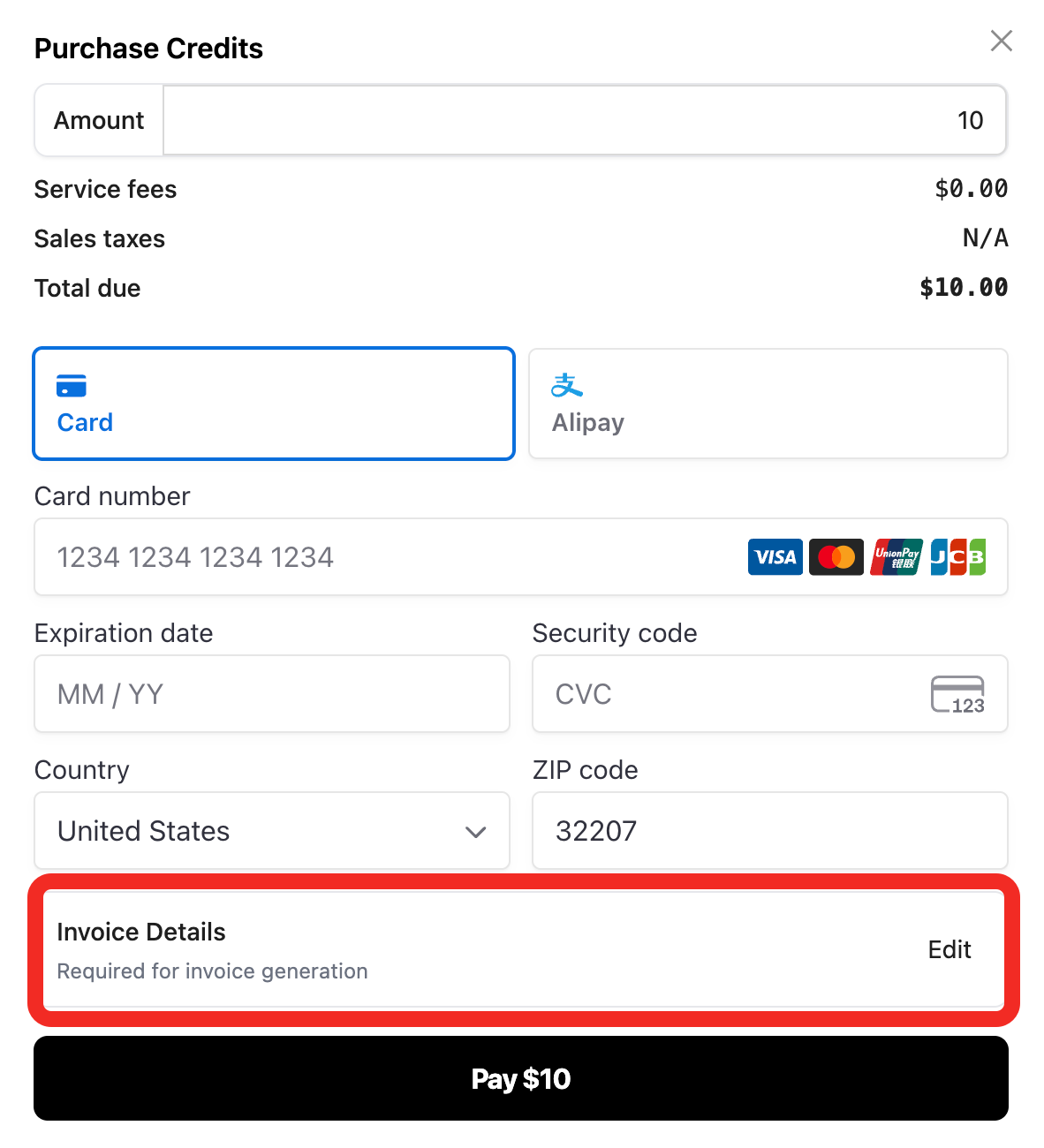
When you make a Pay As You Go top-up or subscription plan payment, you can see the Invoice Details section at the bottom of the payment page:
- Click the "Edit" button in the Invoice Details section
- Fill in the following invoice information in the popup form:
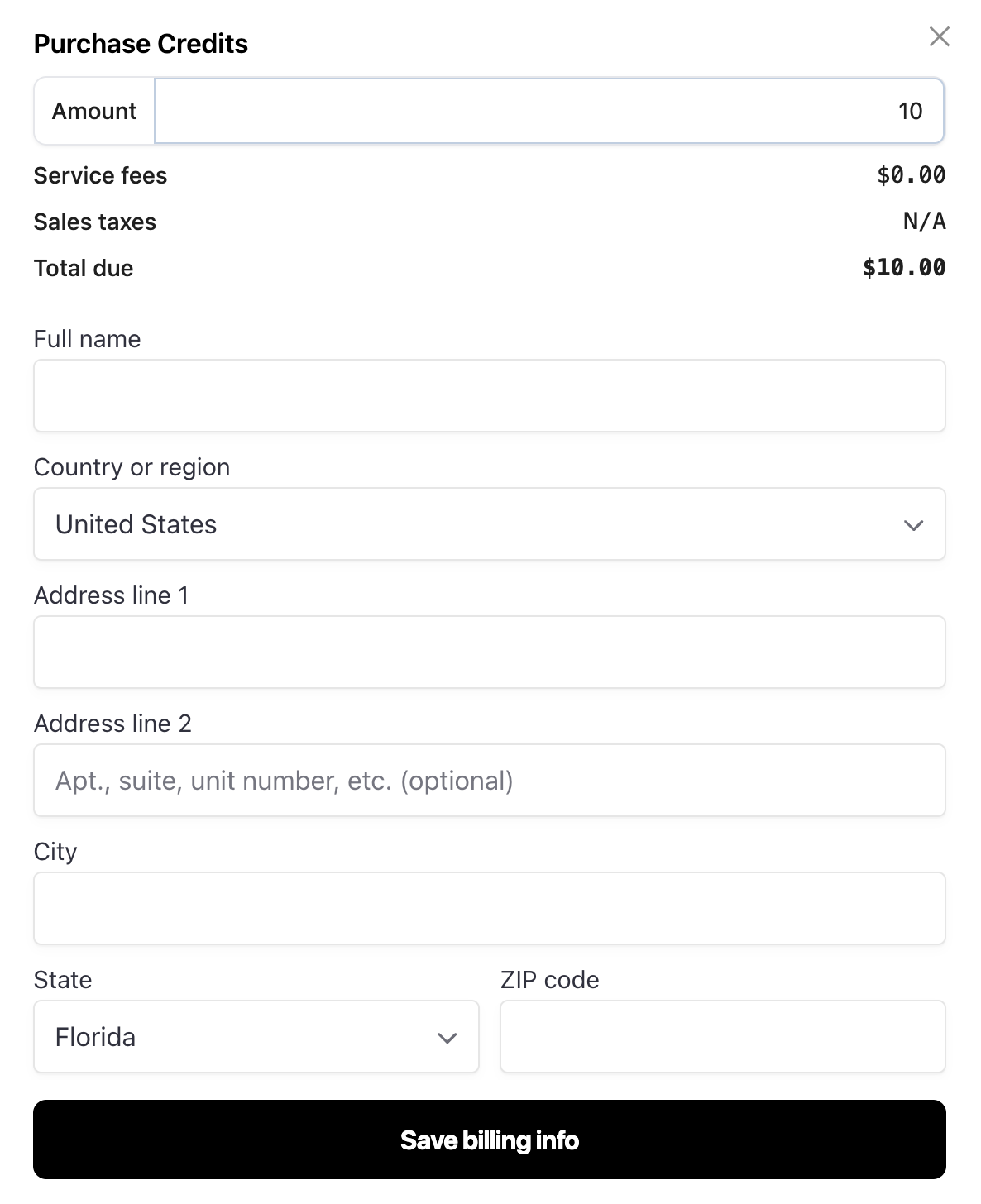
| Field | Description | Required |
|---|---|---|
| Full name | Invoice recipient name (individual name or company name) | ✅ Yes |
| Country or region | Country or region | ✅ Yes |
| Address line 1 | Detailed address (line 1) | ✅ Yes |
| Address line 2 | Detailed address (line 2, optional) | ⚪ No |
| City | City | ✅ Yes |
| State | State/Province | ✅ Yes |
| ZIP code | Postal code | ✅ Yes |
- After completing the form, click "Save billing info" to save your invoice information
- Continue with the payment process
⚠️ Important Note
Invoice information must be filled in before payment. If you don't provide invoice information during payment, it may not be possible to issue an invoice retroactively, or you may need to contact customer support.
Modify Saved Invoice Information
If you have previously saved invoice information, the system will automatically use the previously saved information for your next top-up or subscription. To modify it:
- Click the "Edit" button in the Invoice Details section on the payment page
- Update the fields you need to modify
- Click "Save billing info" to save the updates
The system will remember your most recently saved invoice information for convenient future use.
Step 2: Download Invoice
After completing a top-up or subscription payment, you can view and download the corresponding invoice from your billing history.
Download Top-up Invoice from Pay As You Go Page
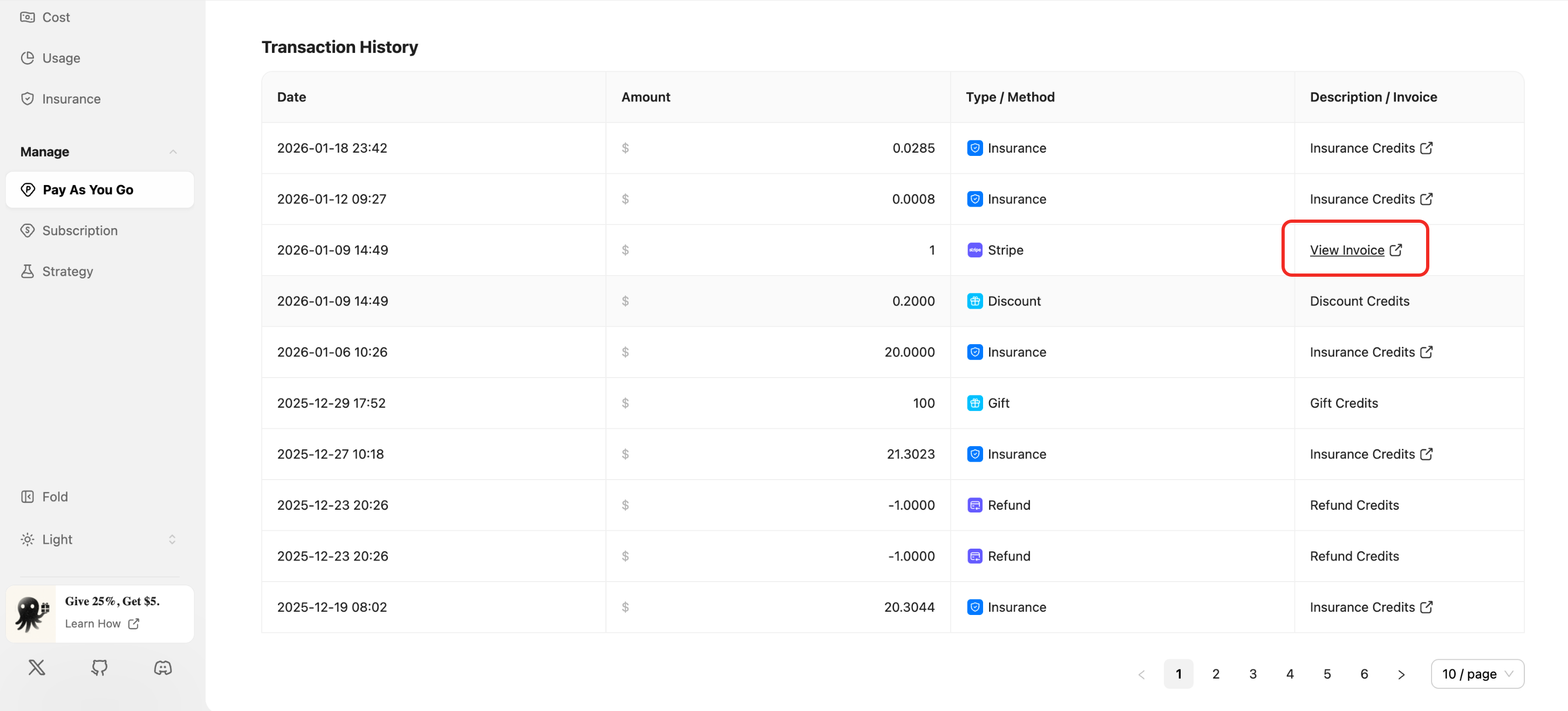
If you made a Pay As You Go top-up, you can download the invoice from your transaction records:
- Visit the Pay As You Go page
- Find the Transaction History section at the bottom of the page
- In the Description / Invoice column of the transaction list, locate the corresponding top-up record
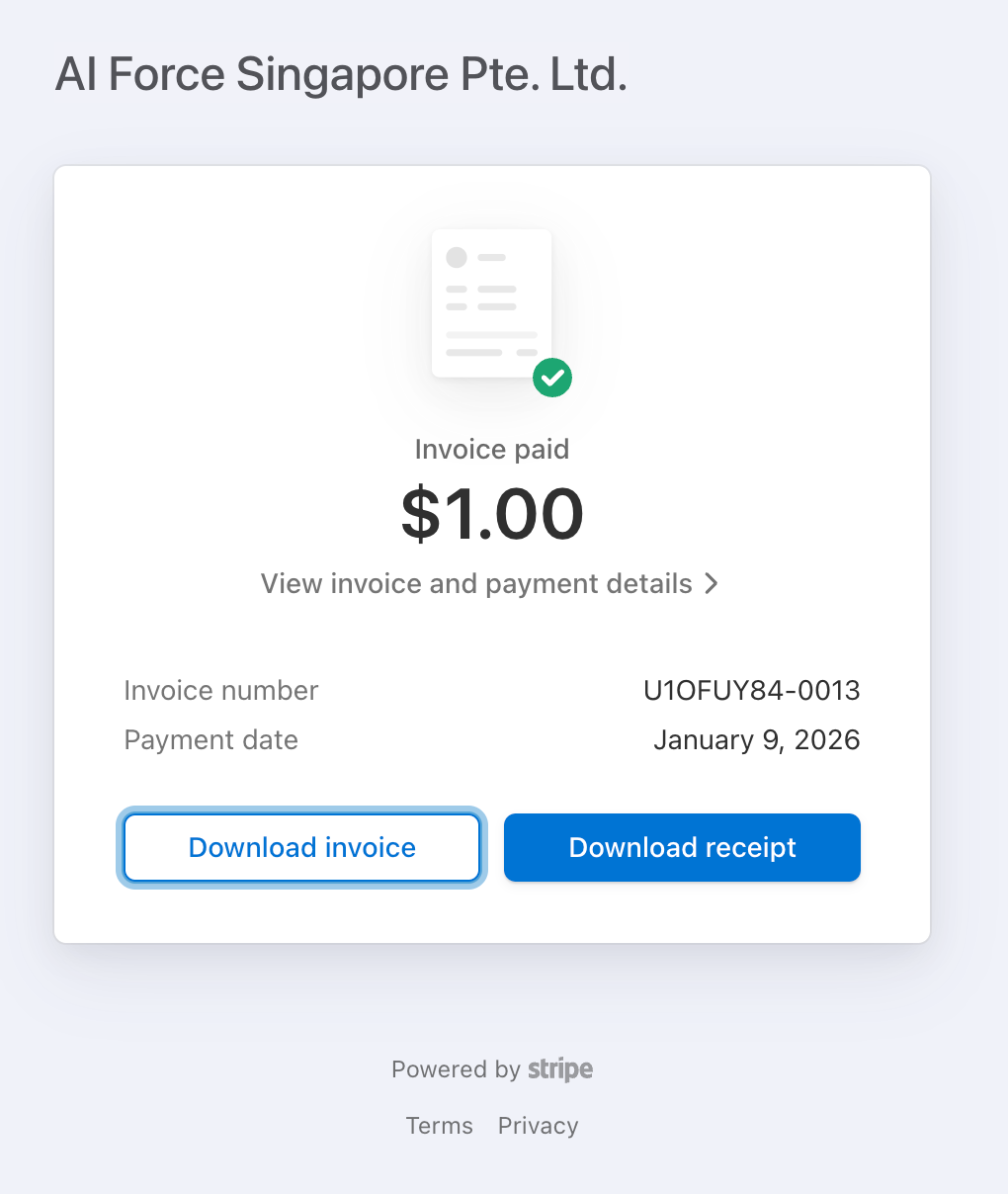
- Click the "View Invoice" link to download the invoice (PDF format)
💡 Invoice Generation Time
After a successful top-up, the invoice is generated immediately. Click the View Invoice link to download it right away.
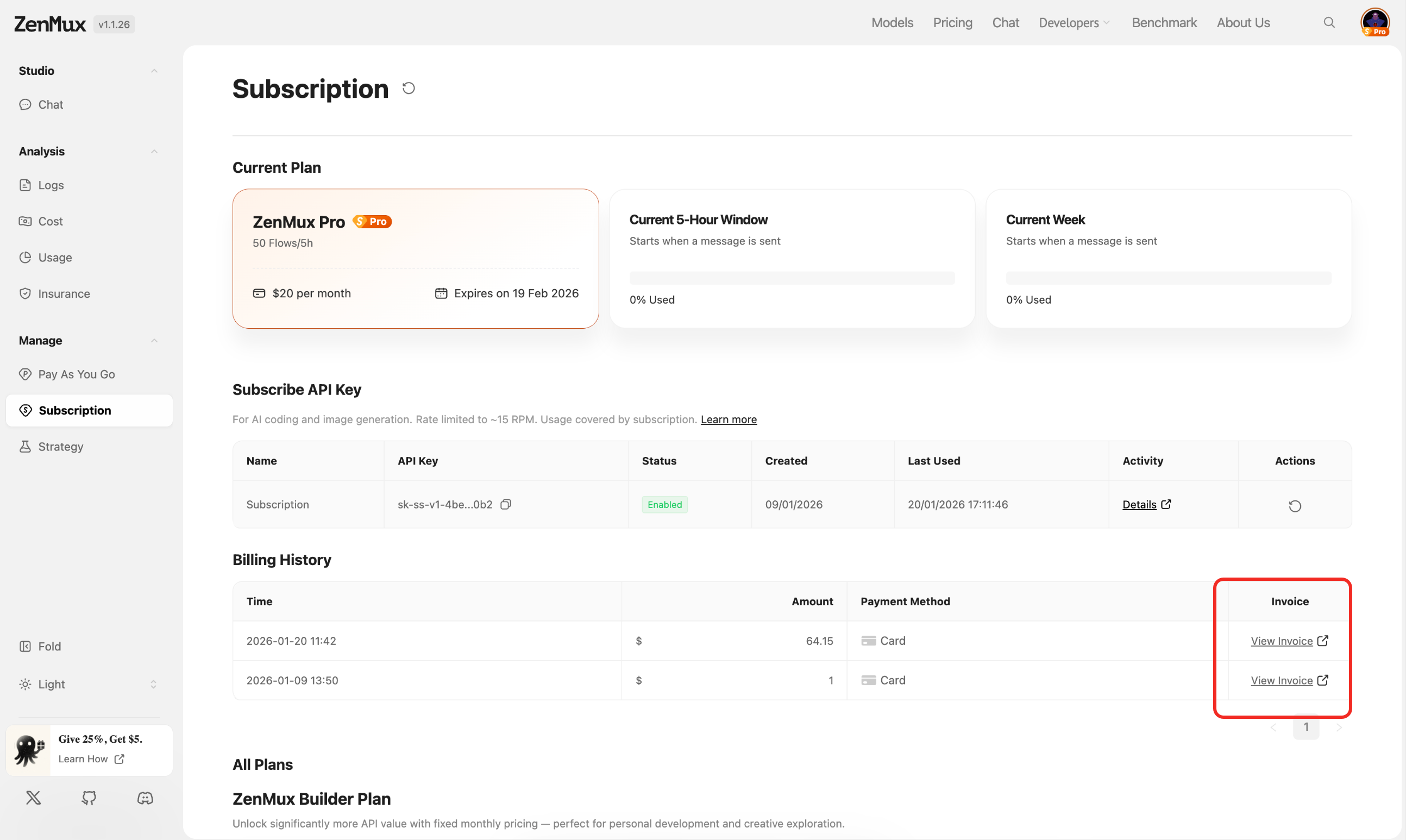
Download Subscription Invoice from Subscription Page
If you made a subscription plan payment (Builder Plan), you can download the invoice from the subscription management page:
- Visit the Subscription page
- Find the Billing History section on the page
- In the Invoice column of the billing list, locate the corresponding subscription payment record
- Click the "View Invoice" link to download the invoice (PDF format)
Invoice Content Details
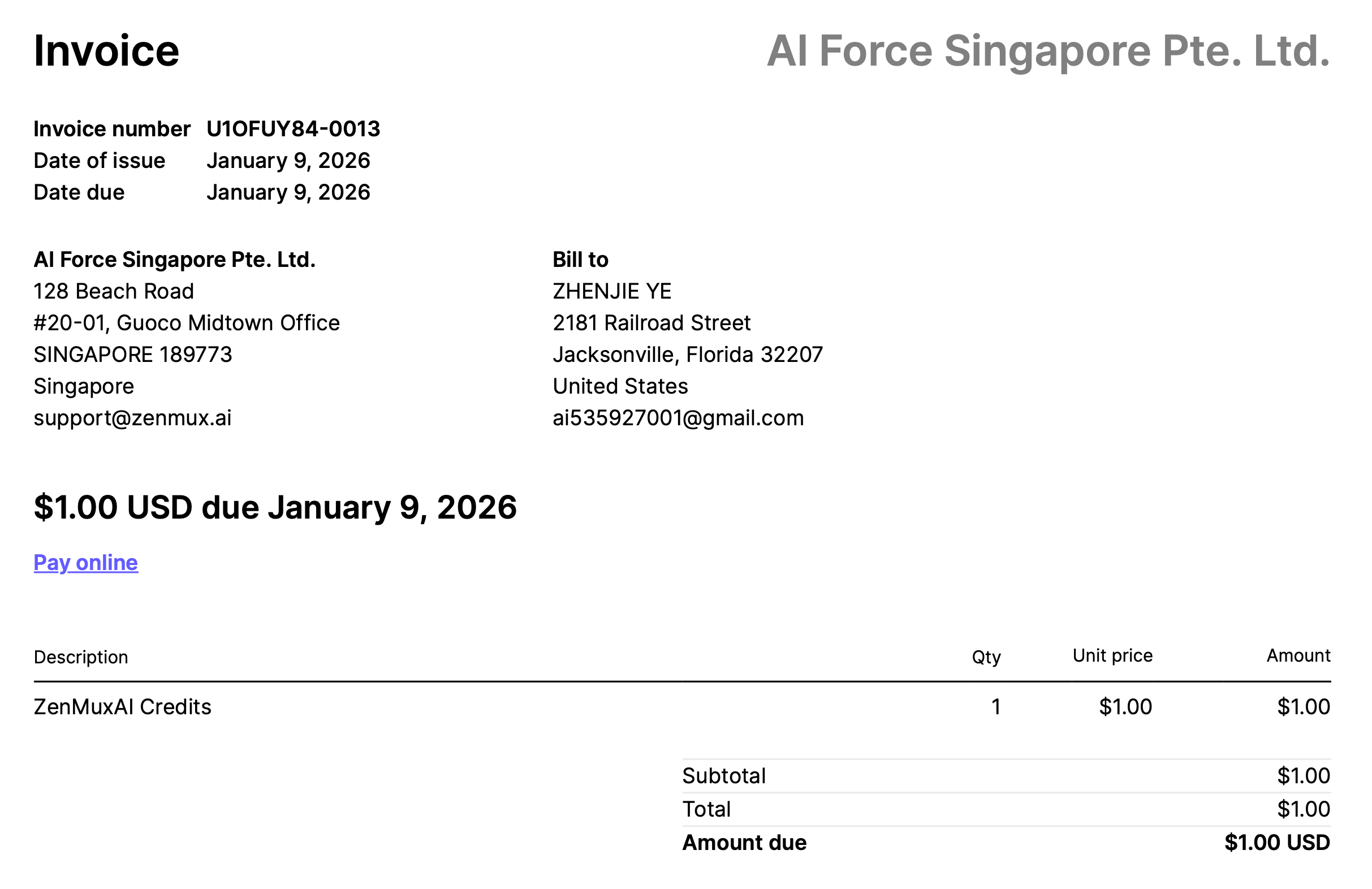
ZenMux invoices contain the following information:
- Invoice Number: Unique invoice identification code
- Invoice Date: Date the invoice was generated
- Transaction Amount: Actual payment amount (USD)
- Invoice Recipient: The name or company name you provided
- Billing Address: The complete address information you provided
All invoices are in PDF format and can be printed directly or used for corporate reimbursement and financial audits.
Frequently Asked Questions
What if I forgot to fill in invoice information?
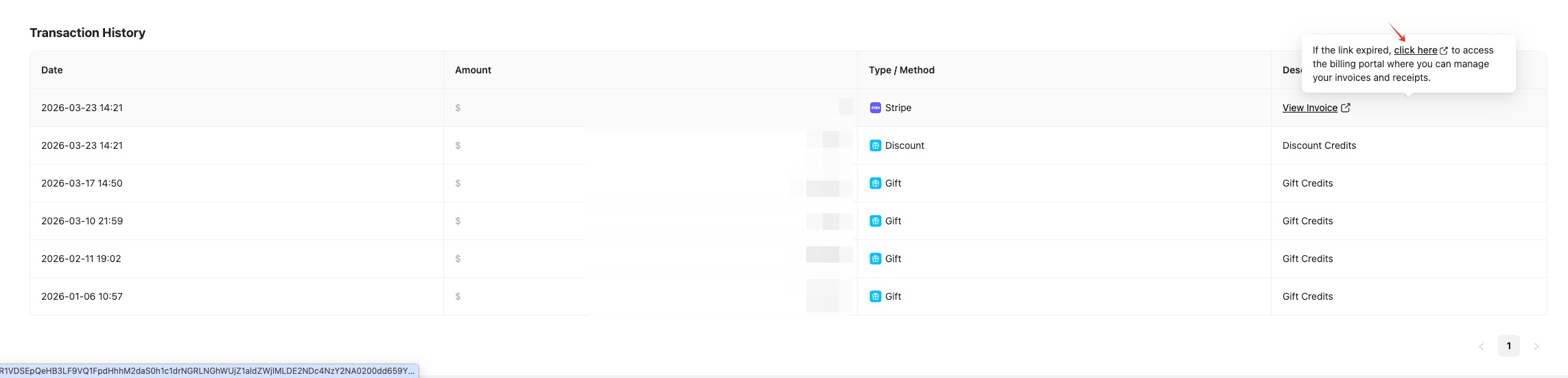
If you forgot to fill in invoice information during payment, you can add it yourself through the Stripe billing portal without contacting customer support:
Step 1: Go to the Transaction History Page
Find the order in Transaction History and click the "click here" link in the prompt to enter the Stripe billing portal.
Step 2: Update Billing Information
In the Stripe billing portal, find the "Billing and shipping information" section and click the "Update information" button to fill in or modify your invoice information (company name, email address, etc.). Once updated, future invoices will automatically use the new information.
Can the invoice be used for corporate reimbursement?
Yes. The PDF invoices provided by ZenMux contain complete transaction information and billing details, which meet the requirements for corporate reimbursement and financial audits.
How long does it take to generate an invoice?
After a successful top-up or subscription payment, the invoice is generated immediately. If you still don't see the invoice after 10 minutes, please contact customer support.
Invoicing & Compliance
ZenMux provides standard electronic invoices in English, available for download via your dashboard. For inquiries regarding corporate procurement processes or specific financial compliance requirements, please contact our business team:
- Business Inquiry: [email protected]
Next Steps
Now that you understand how to obtain invoices, you can:
- Check the Pay As You Go Guide to learn about top-ups and balance management
- Check the Subscription Plan Guide to learn about subscription billing
- Visit the Cost Analysis page to view detailed expense breakdowns
- Join the Discord Community to connect with other developers
Contact Us
If you encounter any issues or have any suggestions and feedback, please feel free to contact us:
- Official Website: https://zenmux.ai
- Technical Support Email: [email protected]
- Business Cooperation Email: [email protected]
- Twitter: @ZenMuxAI
- Discord Community: http://discord.gg/vHZZzj84Bm
For more contact information and details, please visit our Contact Us page.