

Refunds
If you're unsatisfied with your subscription or Pay-As-You-Go purchase, you can request a refund provided you meet the eligibility requirements. This page covers refund eligibility, calculation methods, and step-by-step instructions.
Refund Eligibility
Both payment methods on ZenMux support refunds, subject to the following conditions:
| Payment Method | Refund Conditions |
|---|---|
| Subscription (Pro / Max / Ultra) | Within 24 hours of subscribing, and API usage value has not exceeded the subscription amount |
| Pay-As-You-Go | Within 24 hours of each top-up order; refund applies to unused paid credits from that order (excludes bonus credits) |
⚠️ Refund Time Limit
Refund requests must be submitted within 24 hours of a successful subscription or purchase. Requests after this window cannot be processed. The refund dialog displays the remaining refund window (e.g., "Refund window remaining Xh Ym") — please confirm that the plan or credits meet your needs promptly.
Non-Refundable Cases
The following situations are not eligible for a refund:
| Case | Description |
|---|---|
| Refund window expired | More than 24 hours since subscription or purchase |
| Fully refunded | The order has already been fully refunded |
| Refund in progress | A refund is already being processed — wait for it to complete |
| Usage exceeds refundable amount | API usage since payment has consumed all refundable credits |
| Insufficient balance (Pay-As-You-Go) | Top-up wallet balance is insufficient to process the refund |
| Order not completed | The order has not been successfully paid |
| Gift subscription | Subscriptions received as a Gift are non-refundable |
Refund Calculation
Subscription Refund
Refund amounts are calculated as follows:
| Item | Description |
|---|---|
| Total paid | Full amount paid in the current billing cycle |
| - Actual usage | Equivalent value of API calls consumed during the subscription |
| - Already refunded | Amount previously refunded (if any) |
| = Refundable balance | Remaining refundable amount after deducting usage and refunds |
| - Platform fee (5%) | Platform refund processing fee |
| = Final refund amount | Amount actually returned to your payment method |
Formula: Refund Amount = (Total Paid - Actual Usage - Already Refunded) × (1 - 5%)
⚠️ Non-refundable Cases
If the equivalent API usage value has exceeded your subscription payment amount, the subscription is not eligible for a refund.
Pay-As-You-Go Refund
Pay-As-You-Go refunds are processed on a per top-up order basis, with each order calculated independently:
| Item | Description |
|---|---|
| Order amount | Payment amount of the top-up order |
| - Usage since payment | Credits consumed after paying for this order |
| - Already refunded | Amount previously refunded for this order (if any) |
| = Refund amount | Amount actually returned after deducting the 5% platform fee |
💡 About Bonus Credits and Referral Rewards
- Credits obtained through top-up bonuses (Discount), platform gifts (Gift), or referral rewards (Referral) are non-refundable and will be forfeited upon refund approval.
- If the refunded order is linked to a referral reward, the referrer will not receive the $5 reward for that order.
⚠️ In-Flight Requests
API requests in transit between payment and refund initiation may still be billed. The final refund amount may differ from the amount shown in the refund preview — the actual settled amount prevails.
Refund Process
Option 1: Self-Service Refund (Subscription)
Step 1: Initiate a refund

Go to the Subscription Management page and click the "Refund" button in the Billing History section.
Note: The Refund button is disabled for gift subscriptions, displaying "Gift subscriptions are not eligible for refunds".
Step 2: Confirm refund details
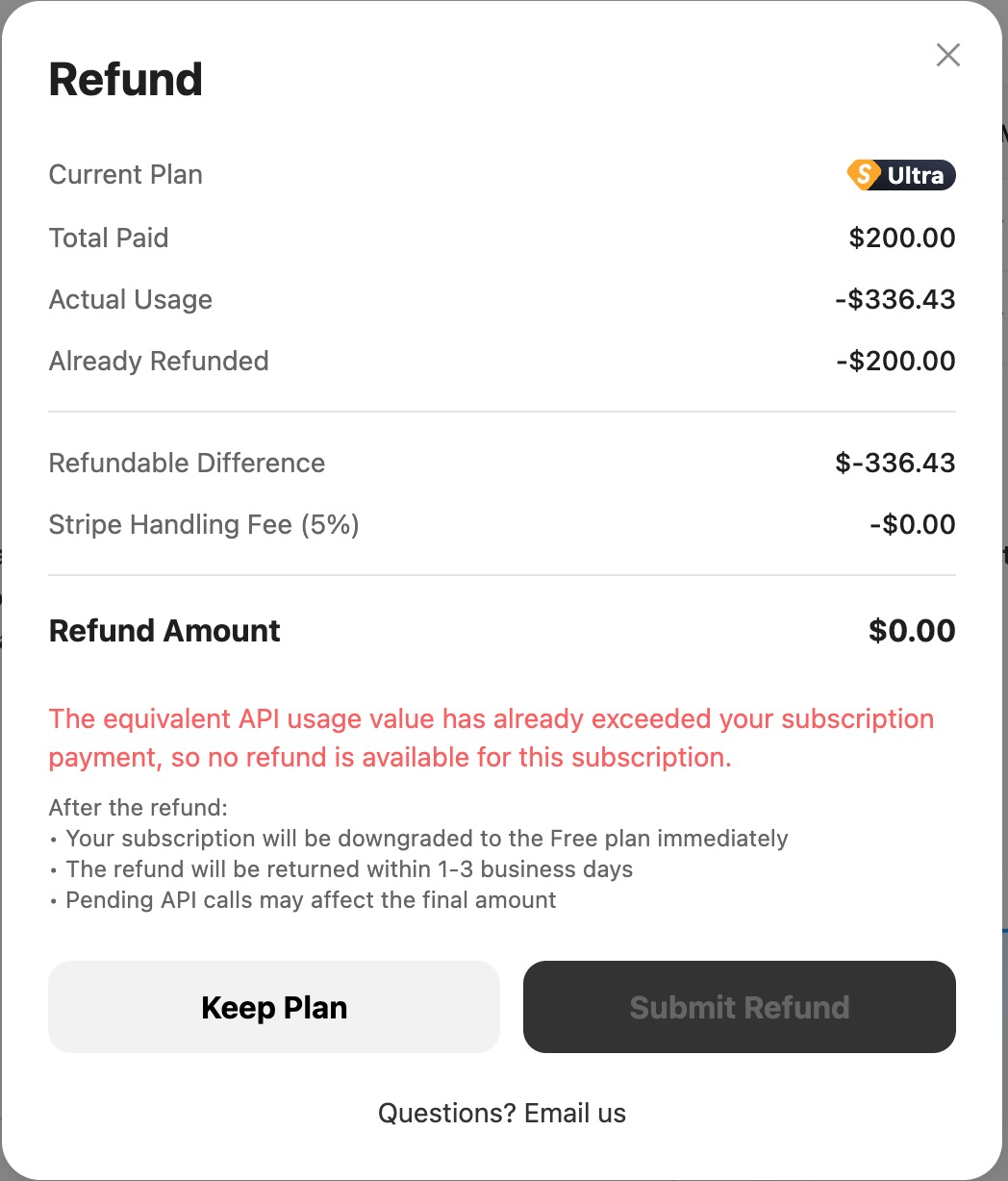
The system will display a refund preview including the current plan, total paid, actual usage, already refunded amount, refundable balance, platform fee (with percentage), and the final refund amount. After confirming, click "Submit Refund" — a second confirmation is required before submission.
Step 3: Wait for processing
After submitting, you can check the processing status in the refund dialog:
| Status | Description |
|---|---|
| 🔵 Refunding | Refund is being processed and will be returned within 1-3 business days |
| 🟢 Refunded | Refund is complete and funds have been returned to your payment method |
| 🔴 Failed | Refund could not be processed — please contact support |
| ⚪ Canceled | Refund request has been canceled |
The refund status is also shown as a tag in the amount column of the Billing History.
Option 2: Self-Service Refund (Pay-As-You-Go)
Step 1: Initiate a refund
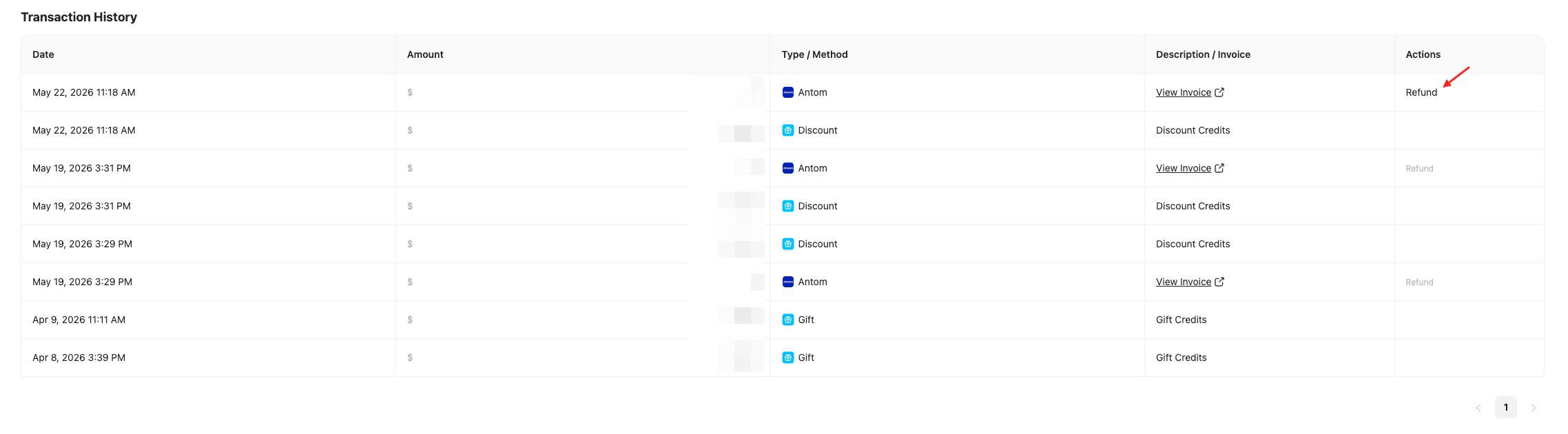
Go to the Credits Management page and find the Stripe or Antom top-up order you want to refund in the Transactions list. Click the "Refund" button on that row.
Note: Only Stripe and Antom (Alipay) top-up orders support online refunds. Other types (gifts, referral rewards, etc.) are not refundable. The Refund button is grayed out for orders older than 24 hours.
Step 2: Confirm refund details
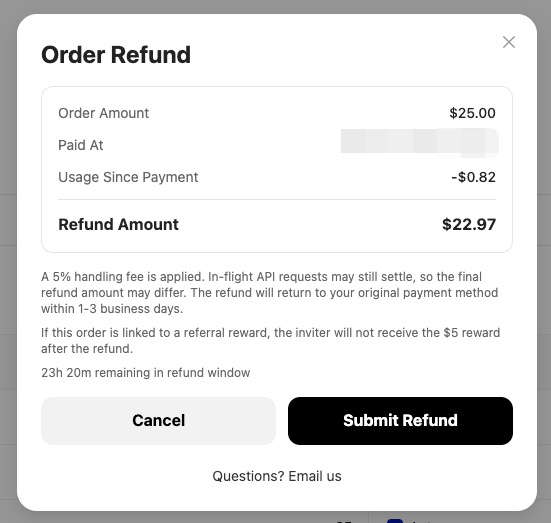
The system will display a refund preview for the selected order, including the order amount, payment time, usage since payment, already refunded amount, final refund amount, and remaining refund window. After confirming, click "Submit Refund" — a second confirmation is required before submission.
Step 3: Wait for processing
The refund will be processed automatically once submitted. The refund amount will be returned to the original payment method within 1-3 business days. The refund amount will be deducted from your top-up wallet balance.
Option 3: Email Request (All Payment Methods)
To request a refund via email, send a message to [email protected] with the following information:
- Account email / Account ID
- Purchase or subscription date and time (format: YYYY-MM-DD HH:mm)
- Purchase or subscription amount
- Current unused credit balance
- Reason for refund
We will review your request within 7 business days. Eligible refunds will be processed to your original payment account in the original currency via the original payment method.
⏱️ Refund Arrival Time
Actual refund arrival times vary by payment institution and may take an additional 3-10 banking business days.
Supported Payment Methods
Refunds are returned to the original payment channel:
| Payment Channel | Applicable To |
|---|---|
| Stripe (credit/debit card) | Subscription + Pay-As-You-Go |
| Antom (Alipay, etc.) | Pay-As-You-Go |
After Refund
Please note the following changes after a successful refund:
| Payment Method | Impact After Refund |
|---|---|
| Subscription | Subscription is immediately downgraded to the Free plan |
| Pay-As-You-Go | Refund amount is deducted from the top-up wallet balance; associated bonus credits are forfeited; if the order is linked to a referral reward, the referrer's $5 reward is revoked |
- Refunded funds will be returned to the original payment method within 1-3 business days
- Pending API calls may affect the final refund amount
- Any exchange rate differences are borne by the user
FAQ
Can I subscribe again after a refund?
Yes. After a refund, your account will be downgraded to the Free plan and you can re-subscribe at any time.
Are bonus credits refundable?
No. Credits obtained through top-up bonuses, platform gifts, or referral rewards are non-refundable and will be forfeited upon refund approval.
Are gift subscriptions refundable?
No. Subscriptions received as a Gift are not eligible for refunds — the Refund button will be disabled.
How long does a refund take?
Self-service refunds typically arrive within 1-3 business days. Email-based refunds require a 7 business day review period, plus an additional 3-10 banking business days for processing.
Can I get a refund if my usage exceeds the subscription amount?
No. If the equivalent API usage value exceeds your subscription payment, the subscription is not eligible for a refund.
Are Pay-As-You-Go refunds per-order or per-account?
Per individual top-up order. You need to find the specific top-up order in your Transactions list and initiate the refund from there. Each order's refundable amount is calculated independently.
What happens to linked referral rewards after a refund?
If the refunded top-up order is linked to a referral reward, the referrer will not receive the $5 referral reward for that order.
What if the Pay-As-You-Go refund shows "insufficient balance"?
The refund amount is deducted from your top-up wallet balance. If your current balance is insufficient to cover the refund, the system will reject the request. Please ensure your wallet has enough top-up balance.
Contact Us
If you encounter any issues or have suggestions and feedback, feel free to reach out:
- Official Website: https://zenmux.ai
- Technical Support: [email protected]
- Business Inquiries: [email protected]
- Twitter: @ZenMuxAI
- Discord Community: http://discord.gg/vHZZzj84Bm
For more contact options and details, visit our Contact Us page.